How to install ClubGG on Windows
Step-by-step guide with screenshots: from download to first launch — 8 steps, a few minutes.
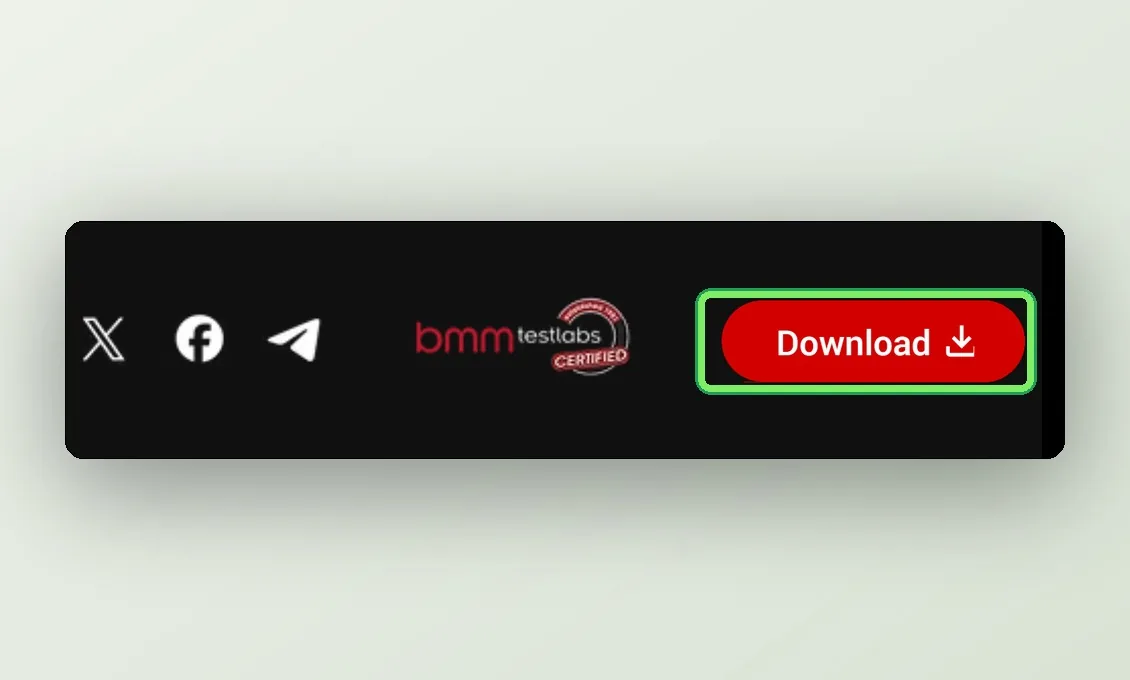
Open clubgg.com and press the Download button in the top-right corner — on a computer the ClubGG installer for Windows (.msi, about 370 MB) downloads straight away.
Open clubgg.com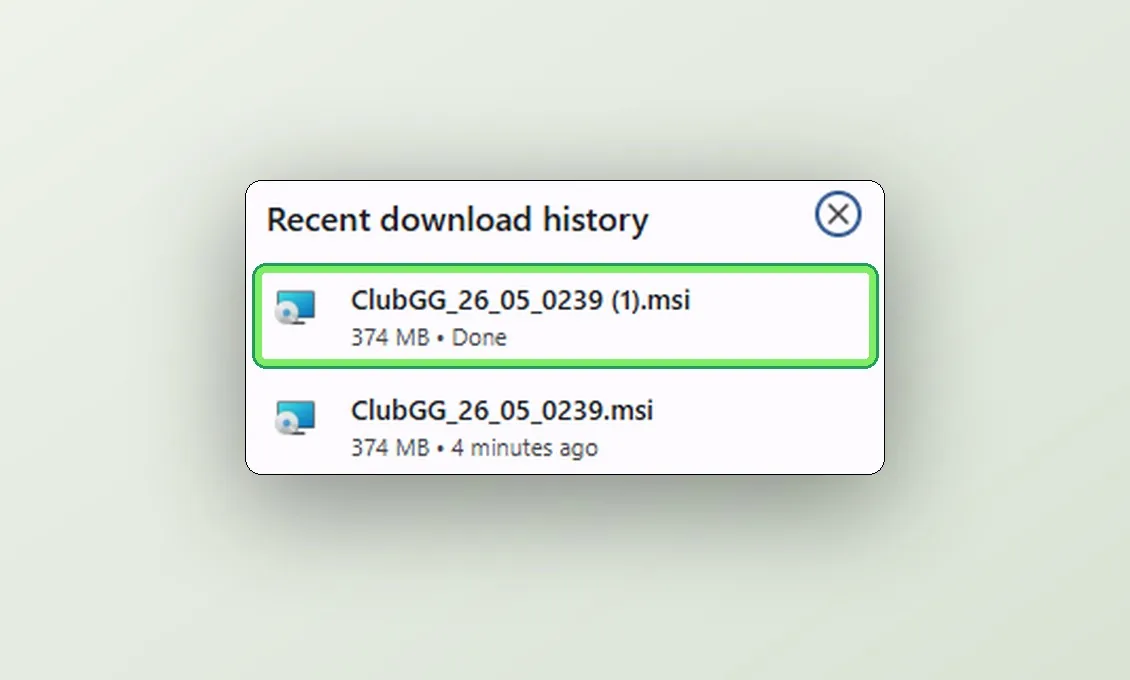
Open the browser downloads and run the ClubGG_….msi file.
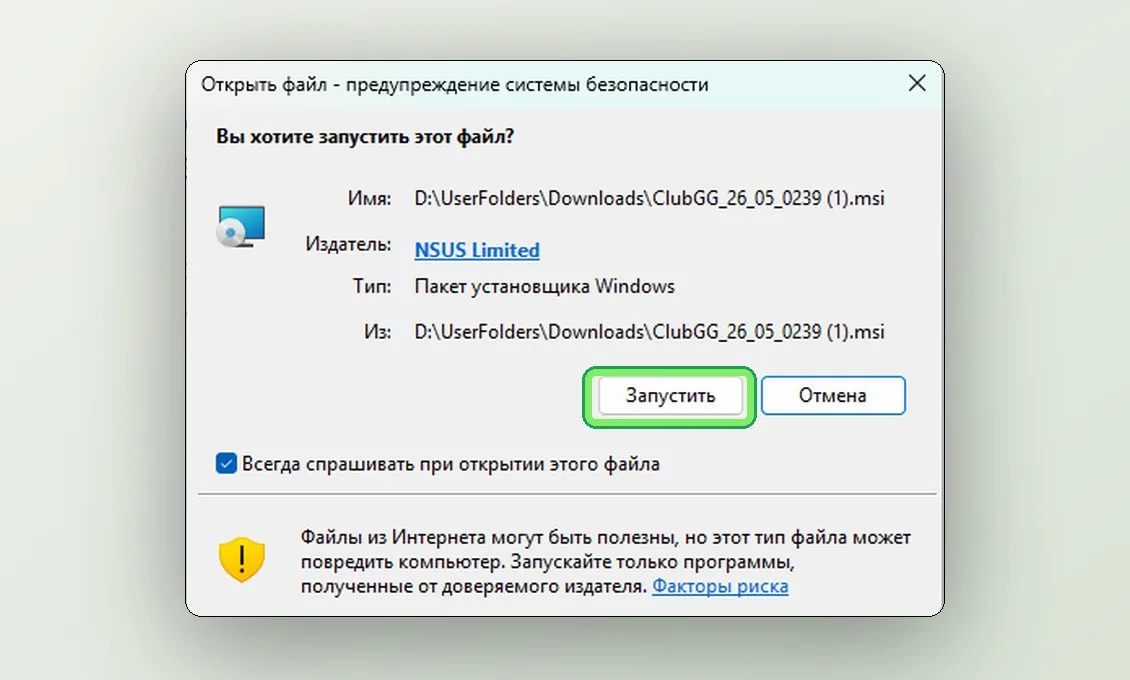
Windows asks whether to run the file. The publisher is NSUS Limited (the ClubGG developer). Click Run.
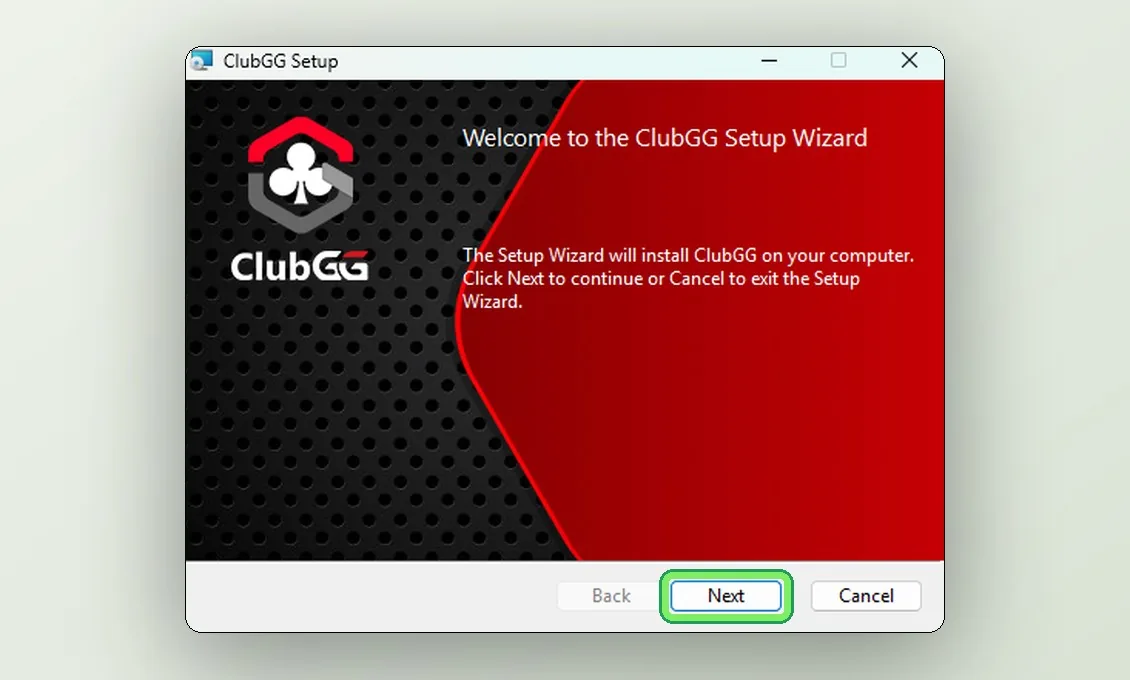
The ClubGG Setup Wizard opens. Click Next.
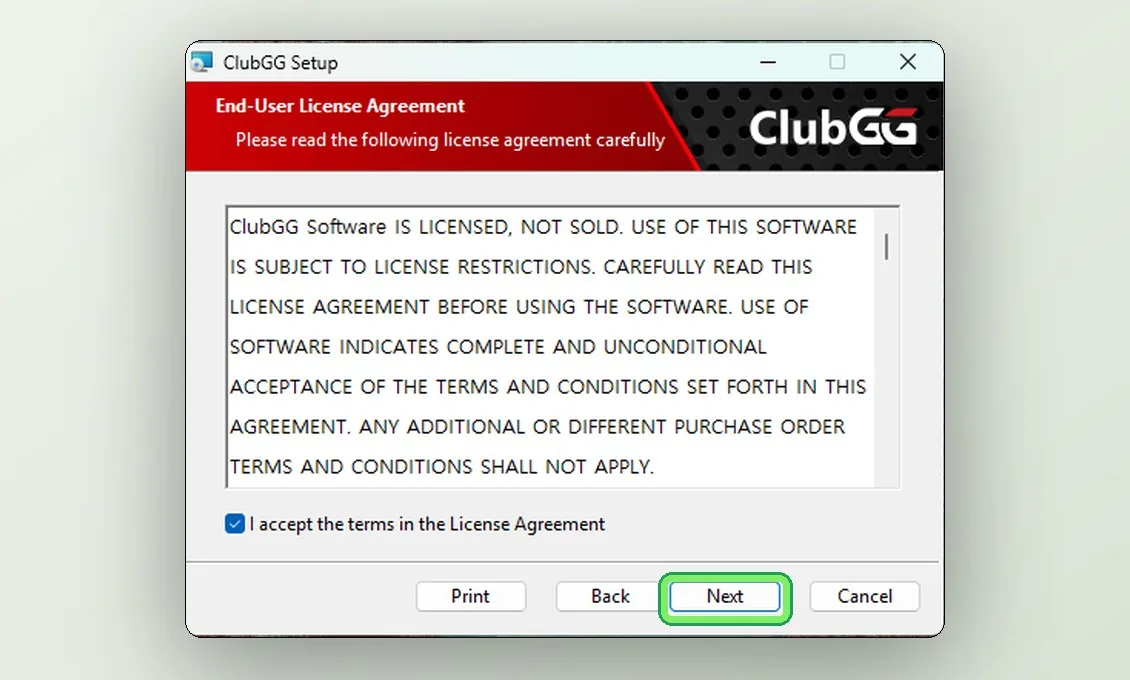
Tick “I accept the terms in the License Agreement” and click Next.
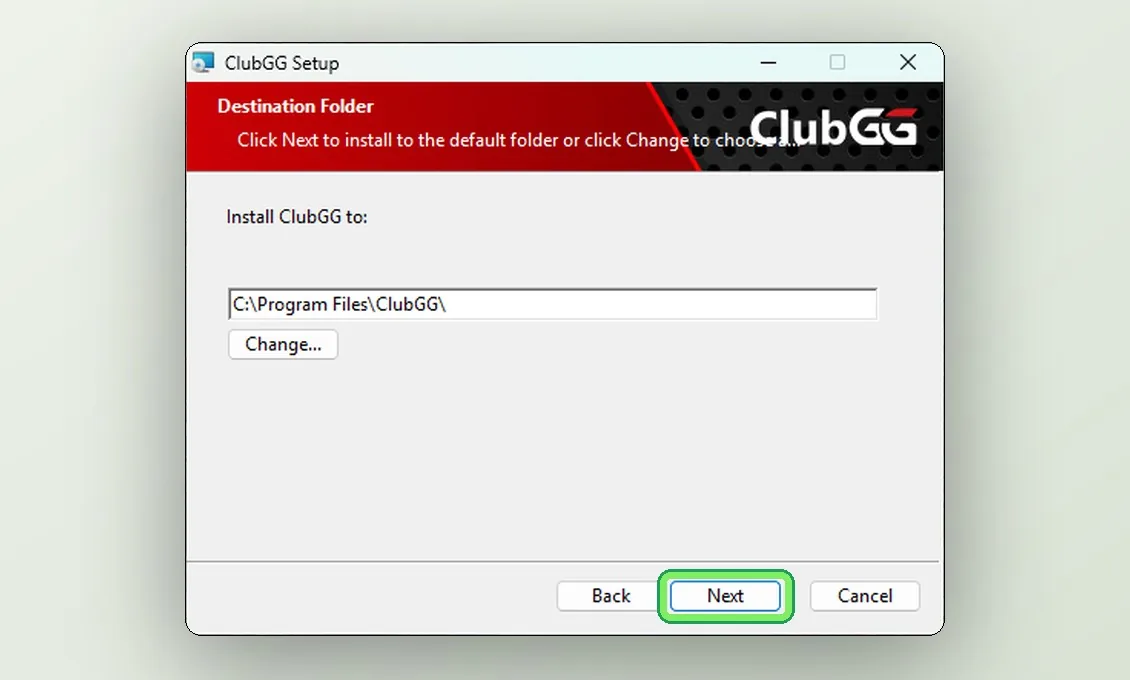
Keep the default folder C:\Program Files\ClubGG\ and click Next.
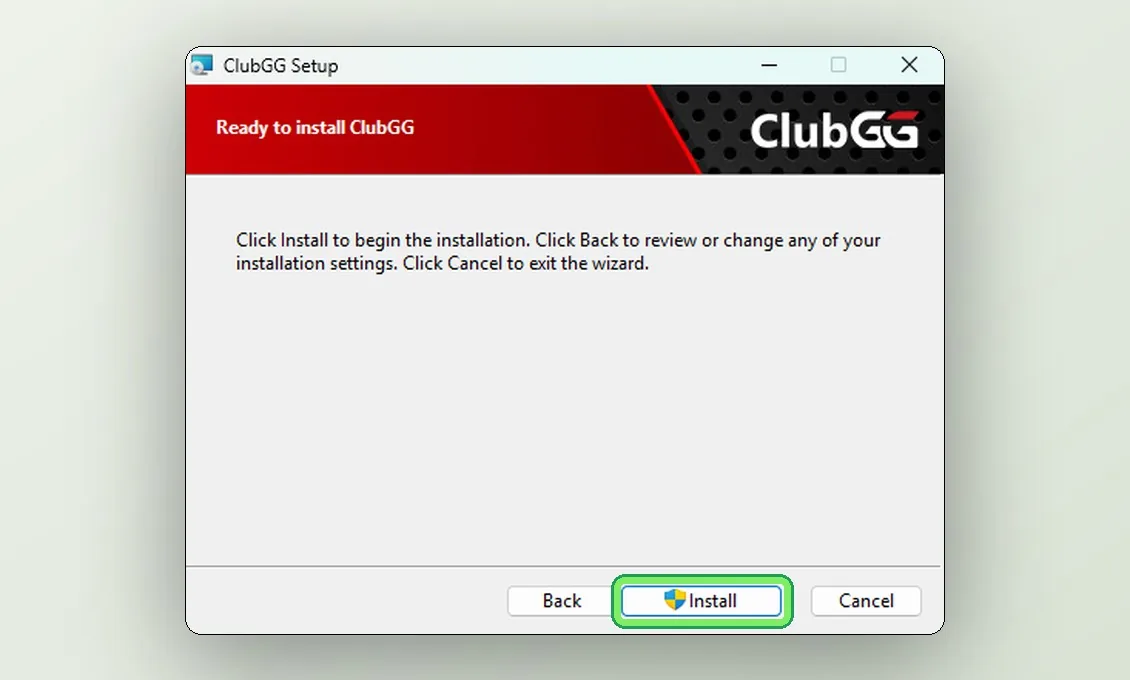
Click Install and wait a minute — the installation runs on its own. If Windows asks for permission, click Yes.
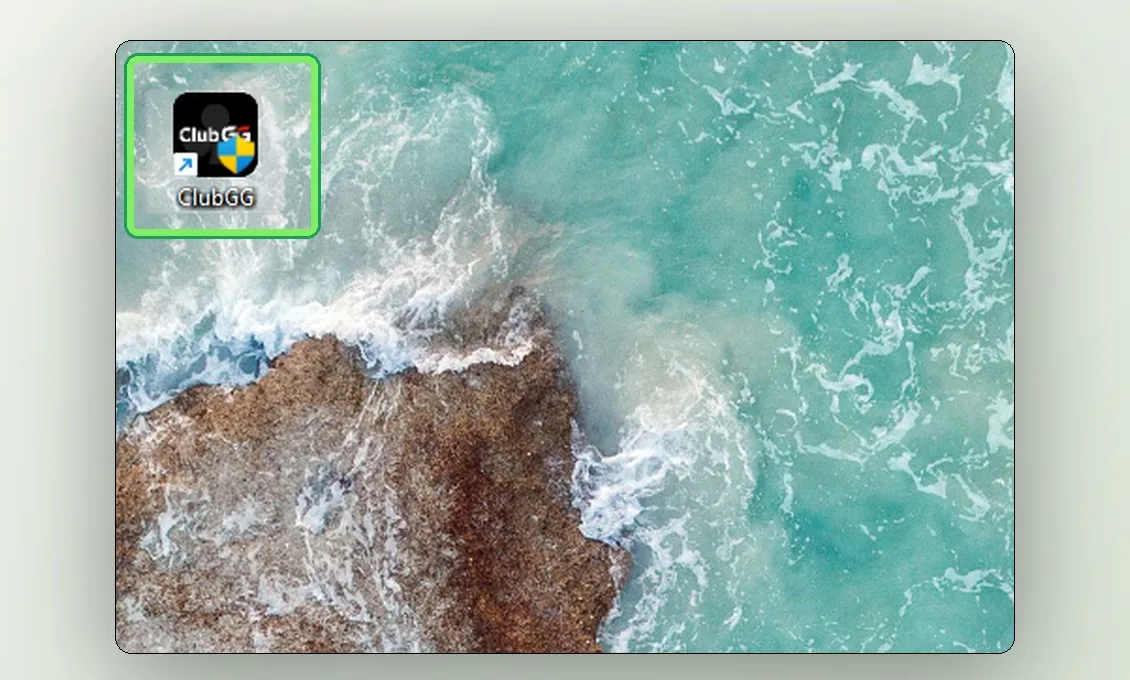
A ClubGG shortcut appears on the desktop — open it and sign in or create an account.
Read guideReady to sit down?
Join MOJO today — the manager will get you chips and a seat within minutes.