Step-by-step guide with screenshots: from download to first launch — 6 steps, a few minutes.
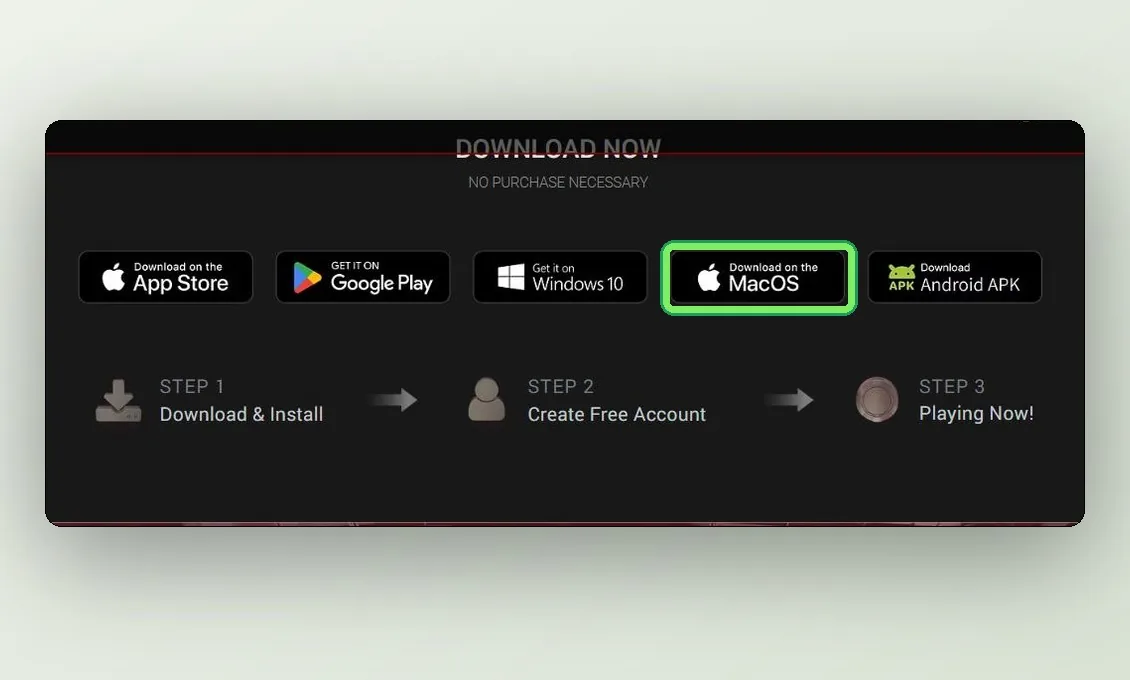
On clubgg.com scroll to the Download Now section and press “Download on the MacOS” — the ClubGG….dmg file downloads.
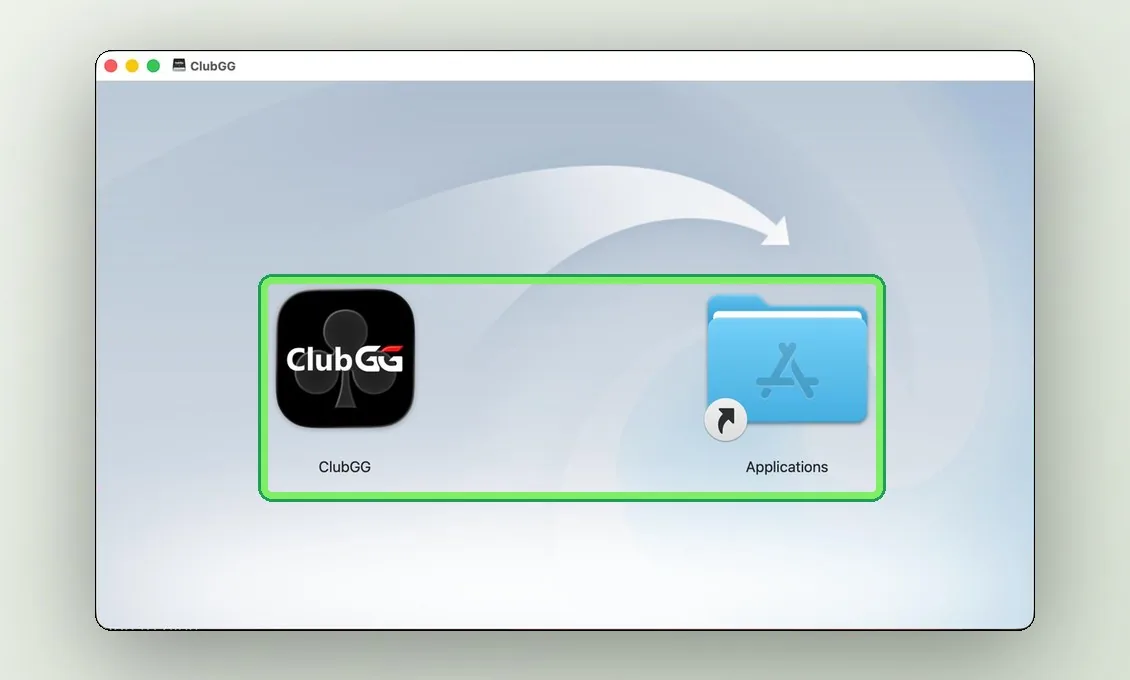
Open the downloaded .dmg — a window with the ClubGG icon and the Applications folder appears. Drag the icon onto the folder along the arrow.
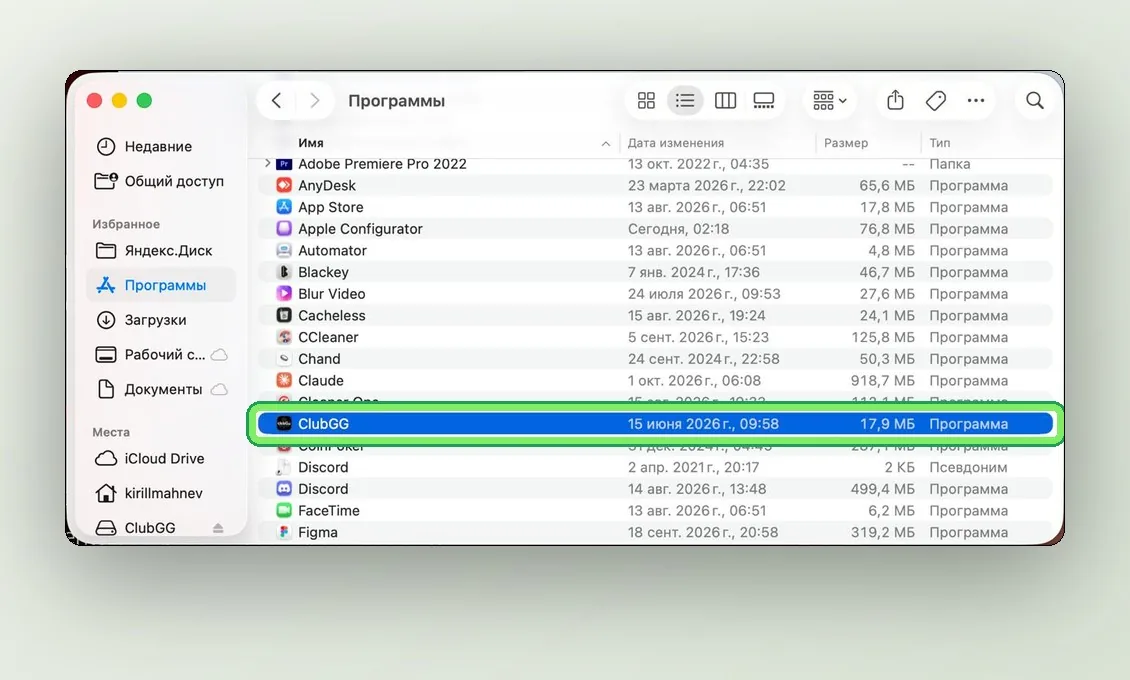
Important: close the disk image window, open Finder → Applications and launch ClubGG from there, not from the image.
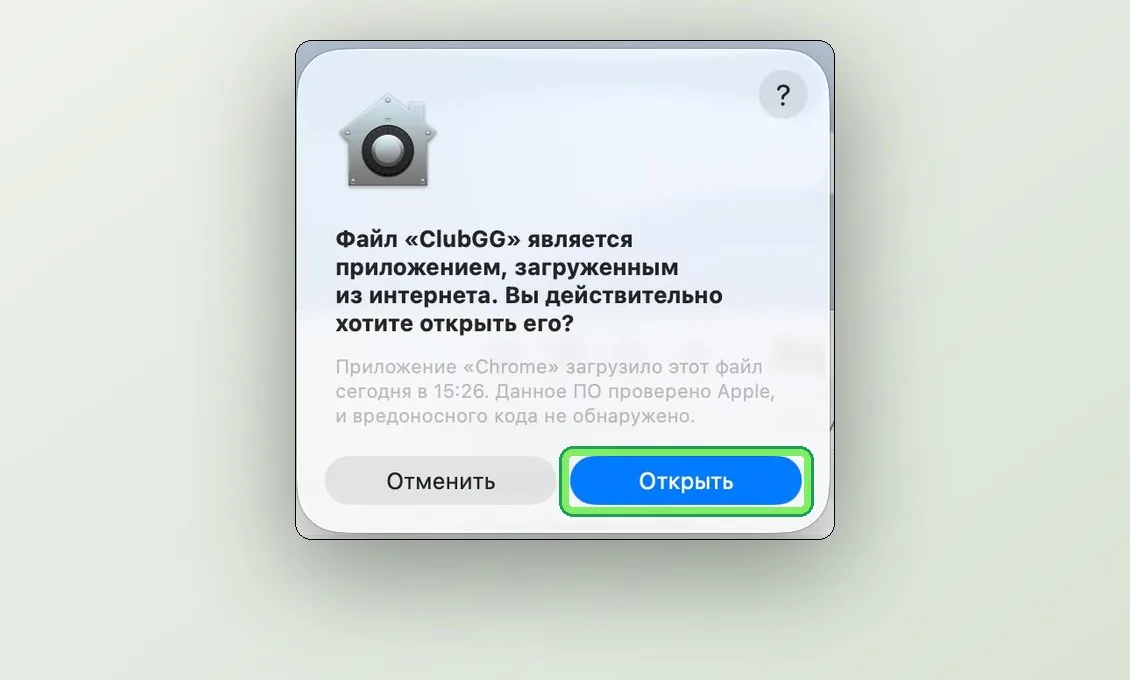
macOS says the app was downloaded from the internet and checked by Apple. Click Open.
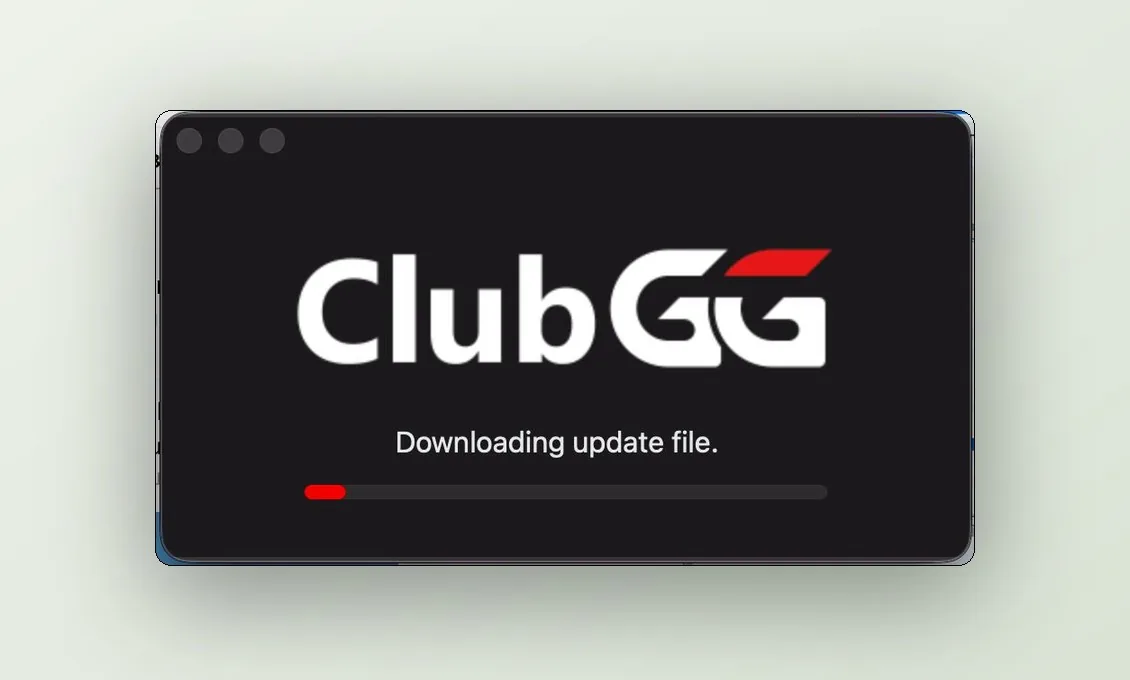
On first launch ClubGG downloads the current version — it takes a minute or two.
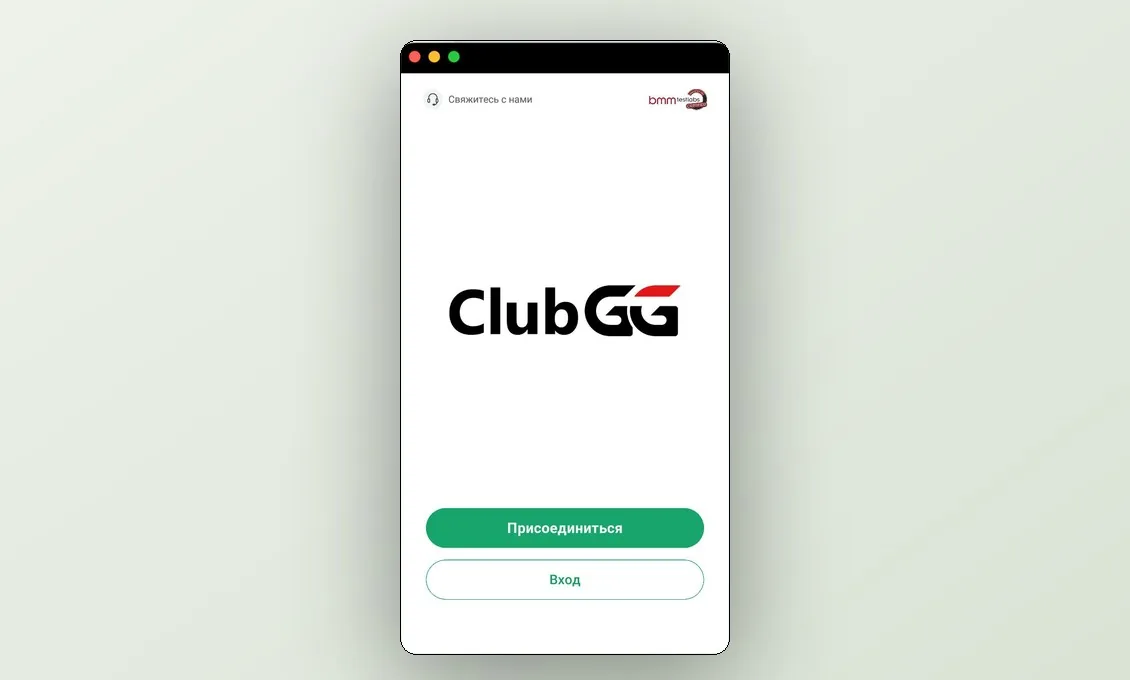
The ClubGG start screen opens with the Join button.
Join MOJO today — the manager will get you chips and a seat within minutes.