
How to install ClubGG on iPhone / iPad

Step-by-step guide with screenshots: from download to first launch — 5 steps, a few minutes.

ClubGG Poker on the App Store
1
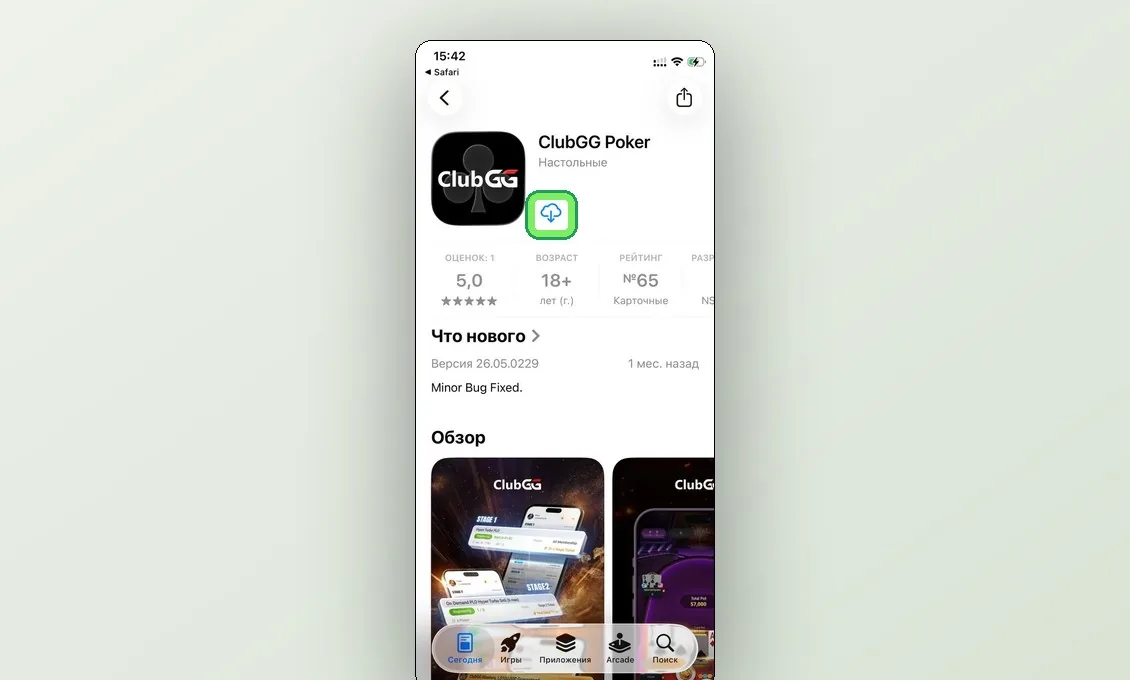
Open ClubGG Poker on the App Store and tap Get

Follow the link — the ClubGG Poker app page opens (developer NSUS). Tap the download icon and confirm with Face ID, Touch ID or your Apple ID password.

Open in the App Store
App Store: Open
2
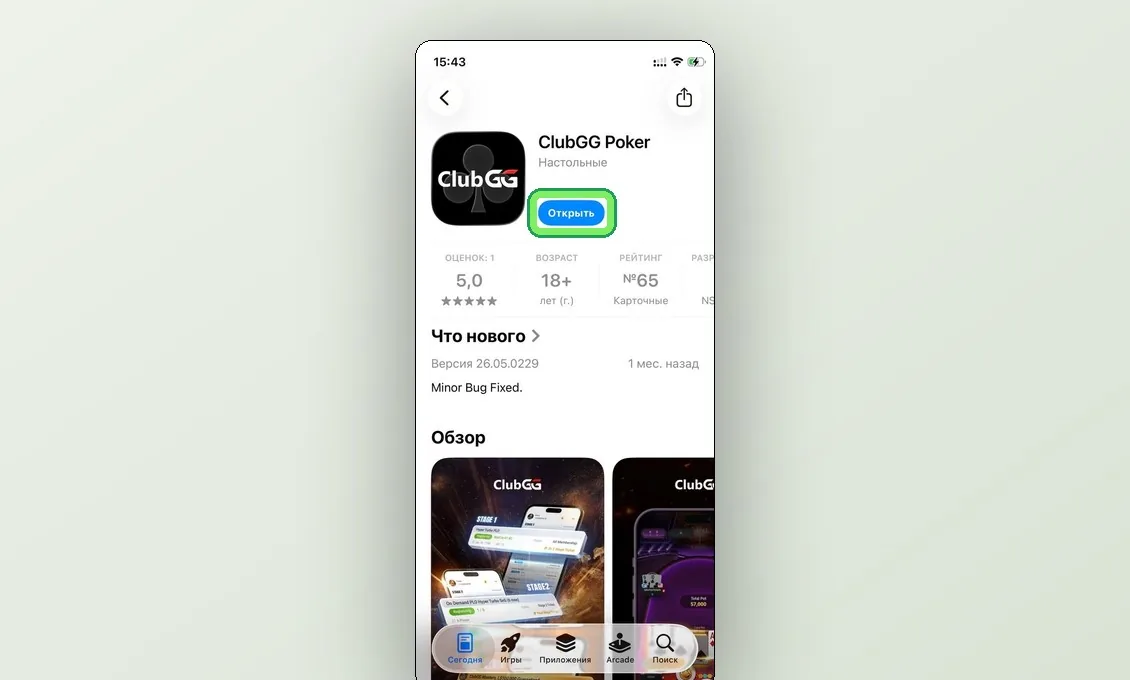
Tap Open

When the download finishes the button changes to Open — tap it (or find ClubGG on the Home screen).

iOS: notifications prompt
3
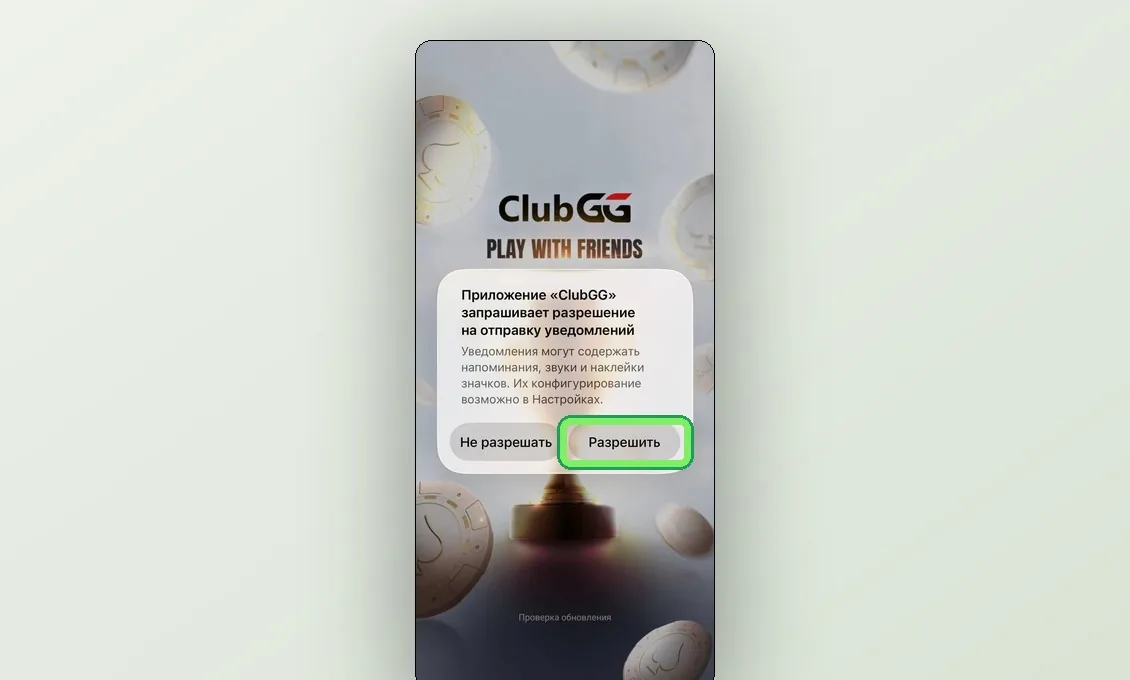
Notifications — optional

On first launch ClubGG asks for notification permission — you can allow it, so you see when a table is ready or the manager has credited chips. But do not give location access if the app asks for it — tap Don’t Allow: it is not needed to play, and GPS reveals your real country.

ClubGG: checking for updates
4
Wait for the update check

The ClubGG splash shows “Checking for updates” at the bottom — wait a few seconds.

ClubGG start screen
5
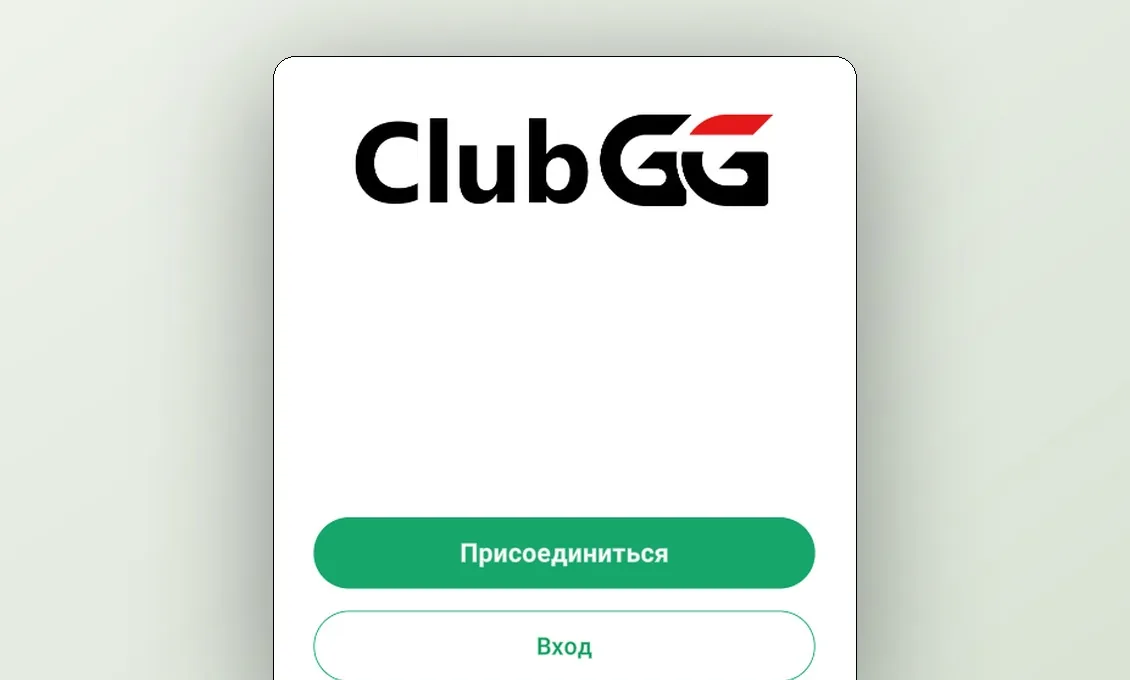
Sign in or create an account

The ClubGG start screen opens with the Join button.

Read guide
Note: Do not give the app your location: it is not needed to play, and GPS reveals your real country — for the MOJO : MU club that leads to an account ban. If you allowed it by accident, turn it off in Settings → Privacy → Location Services → ClubGG → Never.
App installed?
Next step — find the club and join.
How to Join

Ready to sit down?

Join MOJO today — the manager will get you chips and a seat within minutes.

Telegram